


GVWR and GAWR (Gross Vehicle Weight Rating and Gross Axle Weight Rating)
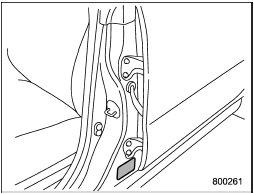
The certification label attached to the driver’s side doorjamb shows GVWR (Gross Vehicle Weight Rating) and GAWR (Gross Axle Weight Rating).
The GVW (Gross Vehicle Weight) must never exceed the GVWR. GVW is the combined total of weight of the vehicle, fuel, driver, all passengers, luggage and any optional equipment. Therefore, the GVW changes depending on the situation.
The GVWR equals Curb Weight (actual weight of your vehicle – including standard equipment, fluids, emergency tools and spare tire assembly) plus the vehicle capacity weight.
In addition, the total weight applied to each axle (GAW) must never exceed the GAWR. The front and rear GAWs can be adjusted by relocating luggage inside the vehicle.
Even if the total weight of your luggage is lower than the vehicle capacity weight, either front or rear GAW may exceed the GAWR, depending on the distribution of the luggage.
When possible, the load should be evenly distributed throughout the vehicle.
If you carry heavy loads in the vehicle, you should confirm that GVW and front and rear GAWs are within the GVWR and GAWR by putting your vehicle on a vehicle scale, found at a commercial weighing station.
Do not use replacement tires with a lower load range than the originals because they may lower the GVWR and GAWR limitations.
Replacement tires with a higher load range than the originals do not increase the GVWR and GAWR limitations.
See also:
Bluetooth®
NOTE
The Bluetooth word mark and logo are
registered trademarks of Bluetooth
SIG, Inc.
It is possible to connect a cell phone to the
in-vehicle equipment through the Bluetooth
® format (w ...
2011 Subaru Forester review
The 2011 Subaru Forester arrived on my doorstep without much fanfare, looking
quite modest and left in much the same way. Put simply: It didn't amaze me, but
it did prove itself to be competent an ...
Recommended cold tire inflation pressure
For the recommended cold tire inflation pressure for your vehicle’s tires, refer
to “Tires” F12-8. ...